
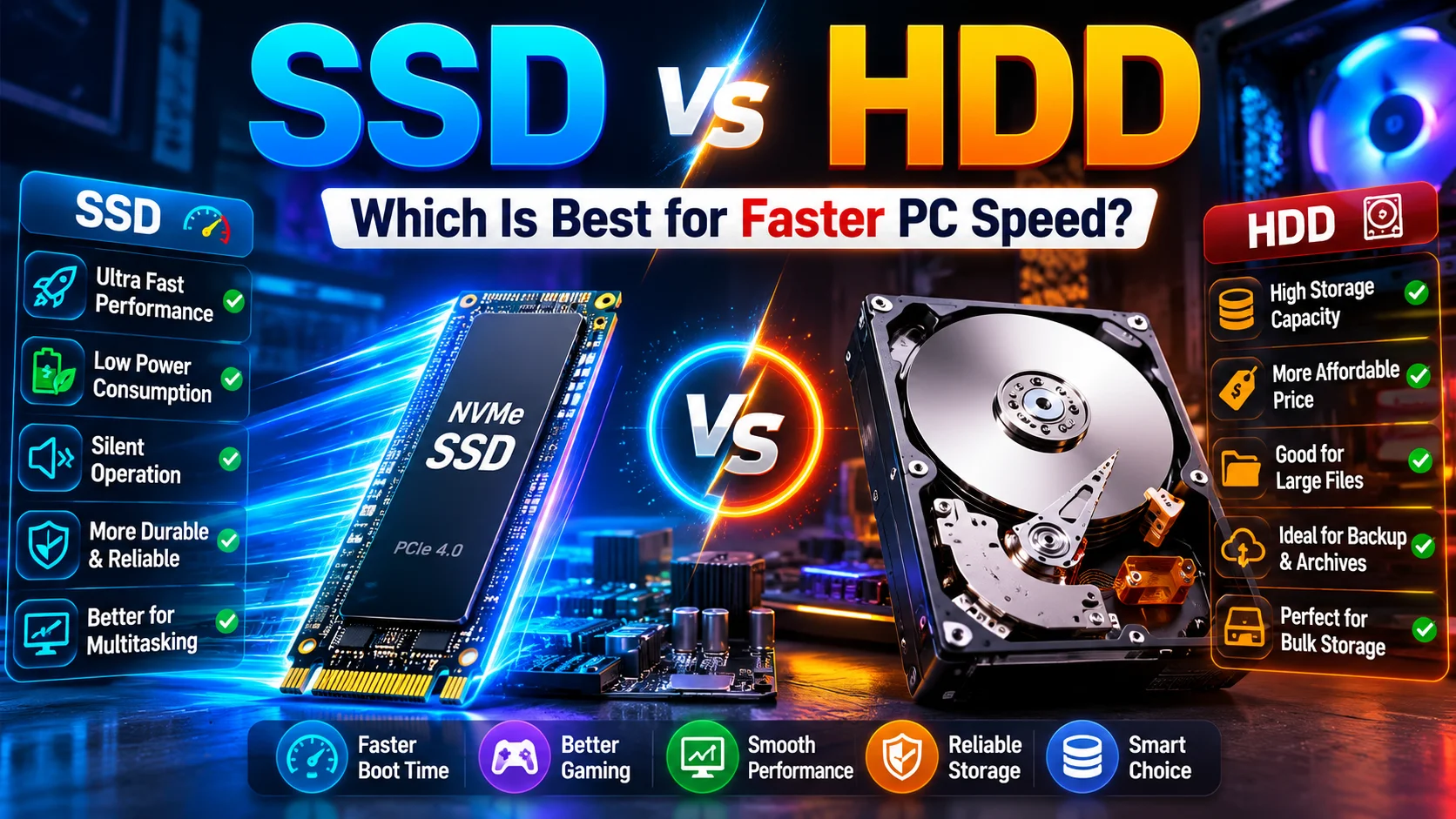
SSD vs HDD: Which Is the Best – Storage Type for PC Speed? As of 2026
Choosing the right storage device is one of the most important decisions when building, upgrading or buying a PC. While the processor, graphics card and RAM receive most of the attention, the type of drive installed in a computer can have a major effect on its overall responsiveness.
Two technologies have traditionally dominated PC storage: SSD and HDD.
A solid-state drive uses flash memory and has no moving mechanical parts. A hard disk drive, on the other hand, stores information on rotating magnetic platters and uses a moving read/write head.
This fundamental difference affects boot times, application loading, gaming, file transfers, noise, durability and overall system responsiveness.
But which one should you actually choose?
For most modern computers, a solid-state drive is the better primary drive because it provides much faster access to data. However, traditional hard disks still have an important advantage: large capacity at a lower cost.
The right choice therefore depends on what you use your computer for.
SSD vs HDD: Quick Answer
If your main priority is PC speed, a solid-state drive is the clear winner.
For a new desktop or laptop, a PCIe NVMe drive is generally the preferred option for Windows, applications and frequently used games.

A traditional mechanical disk is more suitable for bulk data, including movies, photographs, archived projects, documents and other files that do not require extremely fast access.
For many users, the most practical configuration is to combine both technologies:
- Fast drive: Windows, applications, games and active projects
- Large-capacity drive: Movies, photographs, archives and less frequently accessed files
This approach provides an excellent balance between speed, capacity and cost.
What Is an SSD?
An SSD, or Solid State Drive, is a storage device that uses flash memory to store information.
Unlike a mechanical disk, it does not have spinning platters or a moving read/write head. Data is accessed electronically from memory chips.
This design gives the drive very low access latency.
When you open an application, start Windows, search through folders or load a game, the system can retrieve data much more quickly than it can from a conventional mechanical disk.
This is why an old computer can feel dramatically faster after its system drive is replaced with a solid-state model.
Advantages of Solid-State Storage
The main benefits include:
- Very fast boot times
- Quick application launches
- Excellent random-access performance
- Faster game loading
- Silent operation
- No mechanical vibration
- Better resistance to physical shock
- Low access latency
- Excellent responsiveness during multitasking
For a modern operating system, these characteristics make solid-state storage particularly valuable.
Types of SSD
There is more than one type of solid-state drive. Understanding the interface and form factor is important before purchasing one.

SATA SSD
A SATA model communicates through the SATA interface and is commonly available in a 2.5-inch design.
It is an excellent upgrade for an older desktop or laptop that uses a mechanical disk.
Although it cannot match the bandwidth of modern PCIe-based products, it can still provide a huge improvement in everyday responsiveness.
It is particularly suitable for:
- Older computers
- Office systems
- General-purpose laptops
- Basic gaming systems
- Affordable upgrades
M.2 SATA SSD
An M.2 SATA model uses the compact M.2 physical format but communicates through the SATA interface.
This is an important distinction because M.2 describes the physical form factor, not necessarily the communication technology.
Therefore, an M.2 drive can be SATA-based or NVMe-based.
Always check the motherboard specification before purchasing one.
PCIe NVMe SSD
PCIe NVMe is the preferred choice for many modern performance-oriented computers.
It communicates through the PCI Express interface and uses the NVMe protocol, allowing significantly higher bandwidth than SATA.
This type of drive is particularly useful for:
- Gaming
- Video editing
- 3D work
- Software development
- Large file transfers
- Professional workstations
- High-performance PCs
For a new gaming or workstation build, NVMe is usually the most sensible primary option.
M.2 Form Factor
Many modern NVMe products use the M.2 2280 form factor.
Before purchasing one, check:
- Motherboard compatibility
- M.2 slot availability
- Supported PCIe generation
- Drive length
- NVMe support
- Cooling requirements
Do not assume that every M.2 slot supports every type of drive.
What Is an HDD?
An HDD, or Hard Disk Drive, is a mechanical storage device.
It stores information magnetically on rotating platters. A mechanical actuator moves the read/write head over the platter surface to locate the required information.
This design has been used for decades and remains extremely useful for high-capacity storage.
The main disadvantage is mechanical latency.
The drive must physically move components before certain information can be accessed. This makes random operations considerably slower than on flash-based storage.
However, the technology remains popular because it offers excellent capacity for the price.
Advantages of Mechanical Storage
A conventional disk can still be a good choice when you need:
- Large capacity
- Affordable storage
- Media archives
- Backup destinations
- Long-term file storage
- Large photo collections
- Video libraries
- Secondary storage
It is especially attractive when the files stored on it are not accessed constantly.
Types of HDD
Desktop HDD
Desktop models are designed for personal computers and are commonly available in large capacities.

They are suitable for:
- Movies
- Photos
- Documents
- Archives
- Large media collections
- Secondary storage
Laptop HDD
Laptop versions are designed for portable computers and generally use a smaller physical format.
They can provide inexpensive capacity, but their mechanical construction means they are slower and more sensitive to physical shock than flash-based alternatives.
For a modern laptop, solid-state storage is normally preferable.
NAS HDD
NAS-oriented models are designed for network-attached storage systems and multi-drive environments.
They may be suitable for:
- File servers
- Home NAS systems
- Media servers
- Multi-user storage
- RAID configurations
The correct choice depends on the workload and operating environment.
SSD vs HDD: Which One Is Faster?
When comparing raw responsiveness, solid-state technology wins by a wide margin.
The most important difference is not simply maximum sequential transfer speed. Access latency and random performance are also extremely important.
A mechanical disk has to move its head and wait for the platter to rotate to the correct position.
A flash-based drive does not have this mechanical delay.
This makes a major difference when the operating system needs to access thousands of small files.
Real-World Speed Differences
You will notice the difference most clearly during:
- Windows startup
- Application launches
- File searches
- Software installation
- Game loading
- System updates
- Multitasking
- Opening large projects
This is why a computer with a relatively modest processor can sometimes feel faster than a more powerful system equipped with an old mechanical disk.
SSD vs HDD for Windows
For Windows, a solid-state drive is strongly recommended.
The operating system constantly accesses system files, libraries, temporary files and application data.
Fast random access therefore makes a noticeable difference.
Installing Windows on a modern solid-state drive can provide:
- Faster startup
- Faster shutdown
- Faster application launches
- Better responsiveness
- Quicker updates
- Faster file searches
If your computer currently uses a mechanical disk, upgrading the system drive can be one of the most noticeable improvements you can make.
SSD vs HDD for Gaming
For modern gaming, solid-state storage is generally the better choice.
Large games contain thousands of assets, textures, models, sounds and other files. Faster access can significantly reduce loading times.
It is particularly useful for:
- Open-world games
- Large AAA titles
- Modern game engines
- Games with frequent loading screens
- Large game installations
However, there is an important misconception.
Changing the storage device does not automatically produce a huge FPS increase.
Average FPS is primarily influenced by the GPU and CPU.
The major gaming benefits are:
- Faster loading
- Faster level transitions
- Better responsiveness
- Potentially improved asset streaming
Therefore, if you are building a gaming PC, prioritise a good graphics card and processor first, but definitely use a fast primary drive.
SSD vs HDD for Office Work
For office computers, a solid-state drive is usually the better choice.
Applications such as Word, Excel, PowerPoint, browsers and accounting software frequently access small files.
A faster drive makes the entire system feel more responsive.
It is particularly useful when you:
- Work with large spreadsheets
- Keep many browser tabs open
- Switch between several applications
- Open large documents
- Perform frequent file searches
- Use cloud-sync applications
For a standard office PC, even a good SATA model can provide a substantial improvement over an old mechanical drive.
SSD vs HDD for Office Work
Students generally benefit from solid-state storage because their computers are used for many different tasks.
Typical workloads include:
- Web browsing
- Online classes
- PDF documents
- Office applications
- Programming
- Presentations
- Research
- Basic editing
A 500 GB or 1 TB solid-state drive can be sufficient for many students, depending on their applications and file requirements.
If large media collections are required, additional capacity can be added later.
SSD vs HDD for Video Editing
Video editing is one situation where the two technologies can work particularly well together.
Active projects benefit from fast storage because editing applications constantly access media files, cache data and project information.
A good configuration would be:
Primary drive: Operating system + editing software + active projects
Secondary drive: Completed projects + archives + large media library
This allows the editor to work quickly without paying the premium price of putting every archived terabyte on flash storage.
SSD vs HDD for Photo Editing
Photographers and graphic designers can also benefit from fast storage.
Applications such as Photoshop and Lightroom often work with large image files and temporary data.
A practical workflow is:
Fast drive: Current projects
Large-capacity drive: Completed work
Separate backup: Important original files
This provides good performance without sacrificing affordable capacity.
When Should You Choose an SSD?
A solid-state drive is the better choice when:
- Speed is your priority
- You want faster Windows startup
- Applications feel slow
- You play modern games
- You edit photos or videos
- You use professional software
- You frequently transfer files
- You want a quieter PC
- You are upgrading an old computer
- You use a laptop regularly
In simple terms:
Choose flash-based storage when you want your computer to feel faster.
When Should You Choose an HDD?
A mechanical disk makes more sense when:
- Capacity is your priority
- You need several terabytes
- You have a large movie collection
- You store photographs
- You maintain archives
- You need inexpensive secondary storage
- The files are accessed infrequently
- You need a large media library
In simple terms:
Choose mechanical storage when you need lots of space at a lower cost.
Should You Use Both Technologies?
For many users, yes.
Using both types can be more practical than choosing only one.
For example:
1 TB NVMe + 4 TB HDD
The fast drive can contain:
- Windows
- Applications
- Frequently played games
- Current projects
The larger mechanical drive can contain:
- Movies
- Photos
- Documents
- Archived projects
- Installers
- Old games
- Large media collections
This arrangement gives you high responsiveness and high capacity.
Best Storage Setup for a Gaming PC
For a new gaming computer, a good configuration would be:
Primary: 1 TB or 2 TB NVMe
Secondary: 2 TB to 4 TB mechanical drive, if additional capacity is required
If your budget allows, using a larger NVMe drive can simplify the system because more games can remain on the fast drive.
Best Storage Setup for an Old PC
If an old PC is still using a mechanical disk, upgrading the system drive should be one of the first improvements to consider.
For example:
Before: Mechanical disk → Windows + applications
After: Solid-state drive → Windows + applications
Existing disk: Large files and archives
This can make an older computer feel significantly more modern.
Best Storage Setup for a Budget PC
For a budget computer, do not spend your entire storage budget on maximum capacity.
Instead, consider buying a reasonably sized solid-state drive for the operating system.
Additional bulk capacity can be added later.
This approach gives you better everyday performance from the beginning.
Best Storage Setup for Video Editors
Video editors often need both performance and capacity.
A suitable configuration could be:
Fast drive: Windows + editing software
Fast drive: Current project files
Large-capacity drive: Completed projects
Backup drive: Important originals
The exact capacity should depend on the size and resolution of your projects.
SSD vs HDD: Capacity Comparison
Capacity is one area where traditional disks continue to have an advantage.
If you need several terabytes of space, the cost of flash-based storage can become considerably higher.
For example, a user who simply wants to store a large collection of movies may not benefit much from putting every file on an expensive high-speed drive.
The better strategy is often to place frequently accessed files on the fast device and less frequently accessed data on the high-capacity disk.
SSD vs HDD: Durability
Solid-state drives have no spinning platters or moving read/write heads.
This gives them an advantage against physical shock and vibration.
Mechanical drives contain moving components and can therefore be more vulnerable to physical impact while operating.
However, neither technology should be considered completely failure-proof.
Every important file should have a backup.
A reliable backup strategy is more important than simply choosing one type of drive.
Does SSD Increase FPS?
Usually, no significant increase in average FPS should be expected.
Gaming frame rate is primarily affected by:
- Graphics card
- Processor
- RAM
- Game settings
- Resolution
- Drivers
A faster drive mainly improves:
- Loading times
- Startup
- Installation
- File access
- Asset streaming in supported games
Therefore:
Fast drive = Better loading
Powerful GPU = Higher FPS
Does More Storage Make a PC Faster?
No.
Adding more capacity does not automatically improve performance.
For example, changing a 1 TB mechanical disk to a 4 TB mechanical disk does not necessarily make Windows faster.
The important distinction is:
Capacity tells you how much data you can store.
Performance tells you how quickly that data can be accessed.
This is why replacing an old mechanical system drive with a solid-state model can make a much bigger difference than simply purchasing a larger mechanical disk.
What Should You Choose for a New PC?
For a new PC in 2026, a PCIe NVMe drive should normally be your first choice for the operating system and applications.
If you need additional capacity, add a large mechanical drive.
If your budget is sufficient, you can also use a larger NVMe drive and avoid mechanical storage altogether for everyday use.
The decision depends on how much data you need to store.
What Should You Choose for an Old PC?
If the computer has an HDD and feels slow, upgrading to a solid-state drive is usually worth considering.
You do not necessarily need to replace the entire computer.
If the processor, RAM and motherboard are still adequate for your requirements, changing the primary drive can provide a very noticeable improvement.
What Should You Choose for a Laptop?
For laptops, solid-state storage is generally the better option.
The lack of moving parts makes it particularly suitable for portable computers.
It provides:
- Faster startup
- Better responsiveness
- Silent operation
- Lower vibration
- Better resistance to movement and shock
Most modern laptops therefore use solid-state technology as standard.
What Should You Check Before Buying?
Before buying any storage device, check compatibility first.
For SSD
Check:
- Interface
- M.2 slot
- PCIe generation
- Form factor
- Capacity
- Endurance
- Warranty
- Cooling requirements
For HDD
Check:
- Capacity
- Interface
- Rotation speed
- Cache
- Warranty
- Intended workload
- Desktop or NAS suitability
Do not select a drive solely because of its advertised maximum speed or capacity.
SSD vs HDD: Final Verdict
For PC speed, the winner is clearly the SSD.
A modern NVMe model provides excellent responsiveness and is the ideal primary drive for Windows, applications, gaming and demanding workloads.
However, that does not make HDD technology useless.
Traditional mechanical drives remain extremely useful for large-capacity, low-cost storage.
Therefore, the best choice depends on your situation:
For maximum speed: Choose NVMe.
For an older PC upgrade: Choose a SATA or NVMe model depending on compatibility.
For gaming: Choose solid-state storage.
For video editing: Use fast storage for active projects.
For large archives: Choose high-capacity mechanical storage.
For the best overall setup: Use both.
The simplest rule to remember is:
SSD for speed. HDD for capacity. Both for balance.
Frequently Asked Questions
Is SSD better than HDD?
For speed and everyday responsiveness, yes. A solid-state drive is considerably faster for most PC workloads. A mechanical disk is generally better when you need large capacity at a lower cost.
Is NVMe better than SATA SSD?
NVMe can provide significantly higher bandwidth than SATA. For modern performance-focused systems, NVMe is generally the preferred choice.
Can SSD and HDD be used together?
Yes. This is one of the most practical storage configurations for desktops. Use the fast drive for the operating system and frequently accessed applications, while the larger drive handles bulk data.
Should Windows be installed on SSD or HDD?
Windows should normally be installed on an SSD because the operating system benefits greatly from low latency and fast random access.
Is HDD still worth buying?
Yes. It remains a very useful option for large-capacity storage, archives, media collections and secondary storage.
Does SSD improve gaming performance?
It can significantly improve loading times, but it normally does not produce a large increase in average FPS.
Which is better for video editing?
A solid-state drive is better for active editing because it provides faster file access. A mechanical drive can be used for completed projects and archives.
Which is better for storing movies and photos?
If you need several terabytes, a mechanical drive can provide better value. Frequently edited files can remain on the faster drive.
Should I buy a 1 TB SSD or a 2 TB HDD?
If your priority is PC performance, choose the 1 TB solid-state option. If your main requirement is storing a large amount of data at the lowest cost, choose the 2 TB mechanical option.
What is the best combination for a PC?
For many users, a 1 TB or 2 TB NVMe drive plus a 2 TB to 4 TB mechanical drive is an excellent combination.
Computer Engineering terminologies Part 1
Check out www.globaledutechpro.com for Educational posts